Enhance audio control with mouse gestures for quick volume adjustments and easy access to sound settings
Enhance audio control with mouse gestures for quick volume adjustments and easy access to sound settings
Vote (12 votes)
Program license Free
Developer Hi
Version 1.1
Works under Windows
Vote
(12 votes)
Developer
Hi
Works under
Windows
Program license
Free
Version
1.1
Pros
- Instant volume control with customizable shortcuts
- Works across all applications, including full-screen programs
- Minimal resource usage
- Access to advanced audio settings from one menu
- Option to personalize appearance with multiple skins
Cons
- Lacks per-application volume management
- No built-in audio device switching
- Interface and features remain basic compared to some modern utilities
A lightweight utility for advanced volume control right from your mouse.
Overview of VolumeTouch
VolumeTouch is a compact Windows utility that upgrades the standard audio control experience. By providing quick and intuitive shortcuts for audio adjustment, it offers users an efficient alternative to the default speaker icon. The application is designed for those who want to manage sound levels with minimal interruption, especially when multitasking or using full-screen programs.
Key Features
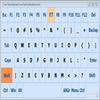
VolumeTouch enables volume control using keyboard and mouse shortcuts, eliminating the need to visually interact with the system tray icon. The default shortcut—Ctrl+Shift combined with the mouse wheel or Up/Down arrow keys—allows precise sound adjustments without leaving any open application or disrupting workflow. A dedicated mute/unmute command (Ctrl+Shift+0) is also included for instant silencing.
Customizability stands out with VolumeTouch. Users can reassign shortcuts to suit personal preferences, making it adaptable to different working habits. Five distinct interface skins are available, allowing the utility to match various desktop aesthetics.
Beyond volume tweaking, VolumeTouch offers convenient access to advanced audio settings. With a couple of clicks, users can reach the Windows Control Panel audio settings, Sound Recorder, and Audio Properties, centralizing audio management within a single interface.
Performance and Usability
Performance is efficient and reliable, with negligible system resource consumption. The software responds quickly to shortcut commands and runs quietly in the background. Its unobtrusive design ensures it stays out of the way when not in use.
During testing, shortcuts worked consistently across different applications, including games and multimedia software. The ability to mute or alter volume without leaving a full-screen app is particularly useful for users who rely heavily on their PCs for both productivity and entertainment.
Interface and Compatibility
VolumeTouch features a minimalistic tray icon that can replace the default system volume icon entirely, contributing to a cleaner system tray look. Removing the original Windows speaker icon is straightforward through the built-in options.
The tool is compatible with a wide range of Windows versions, including older systems such as Vista, as well as modern editions. Skin options add a touch of personalization to the otherwise functional appearance.
Additional Insights
VolumeTouch's simplicity is both its strength and limitation. For users seeking only core audio adjustment controls, it delivers exactly what is needed without overwhelming menus or bloat. However, it does not integrate advanced features such as individual application volume settings or audio device switching, which are present in some more comprehensive sound utilities.
Conclusion
VolumeTouch is ideal for users looking for a fast, intuitive way to control system volume using keyboard and mouse shortcuts. Its lightweight nature and customizable controls make it a valuable addition for productivity-focused users and those who frequently switch between applications.
Pros
- Instant volume control with customizable shortcuts
- Works across all applications, including full-screen programs
- Minimal resource usage
- Access to advanced audio settings from one menu
- Option to personalize appearance with multiple skins
Cons
- Lacks per-application volume management
- No built-in audio device switching
- Interface and features remain basic compared to some modern utilities